
Using a security key as a passwordless authentication method is currently in public preview. If what you're seeing on your screen doesn't match what's being covered in this article, it means that your administrator hasn't turned on this feature yet. Until this feature is turned on, you must choose another authentication method from the Security Info page. For more information about previews, see Supplemental Terms of Use for Microsoft Azure Previews.
Notes:
-
If you don't see the security key option, it's possible that your organization doesn't allow you to use this option for verification. In this case, you'll need to choose another method or contact your organization's help desk for more assistance.
-
Before you can register a security key, you must have at least one additional security verification method registered.
What is a security key?
We currently support several designs and providers of security keys using the Fast Identity Online (FIDO2) passwordless authentication protocols. These keys allow you to sign in to your work or school account to access your organization's cloud-based resources when on a supported device and web browser.
Your administrator or your organization will provide you with a security key if they require it for your work or school account. There are different types of security keys you can use, for example a USB key that you plug in to your device or an NFC key that you tap on an NFC reader. You can find out more information about your security key, including what type it is, from the manufacturer's documentation.
Note: If you're unable to use a FIDO2 security key, there are other passwordless verification methods you can use such as the Microsoft Authenticator app or Windows Hello. For more information about Windows Hello, see Windows Hello overview.
Before you begin
Before you can register your security key, the following conditions must all be met:
-
Your administrator has turned on this feature for use within your organization.
-
You're on a device running the Windows 10 May 2019 Update and using a supported browser.
-
You have a physical security key approved by your administrator or your organization. Your security key must be both FIDO2 and Microsoft-compliant. If you have any questions about your security key and whether it's compatible, contact your organization's help desk.
Register a security key
You must create your security key and give it a unique PIN before you can sign in to your work or school account using the key. You may have up to 10 keys registered with your account.
-
Go to the My Profile page at My Account and sign in if you haven't already done so.
-
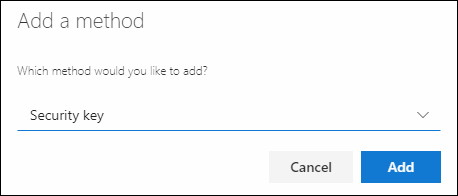
Select Security Info, select Add method, and then select Security key from the Add a method list.
-
Select Add, and then select the type of security key you have, either USB device or NFC device.
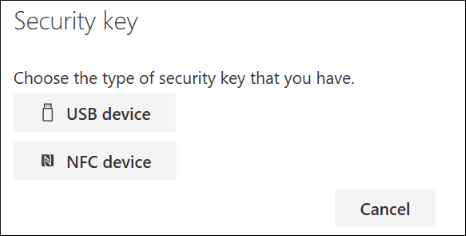
Note: If you aren't sure which type of security key you have, refer to the manufacturer's documentation. If you aren't sure about the manufacturer, contact your organization's help desk for assistance.
-
Make sure that you have your security key physically available, and then on the Security key page, select Next.
-
In the Setting up your new sign-in method page, select Next, and then:
-
If your security key is a USB device, insert your security key into the USB port of your device.
-
If your security key is an NFC device, tap your security key to your reader.
-
-
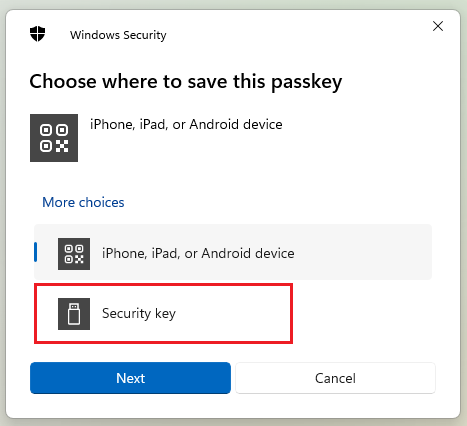
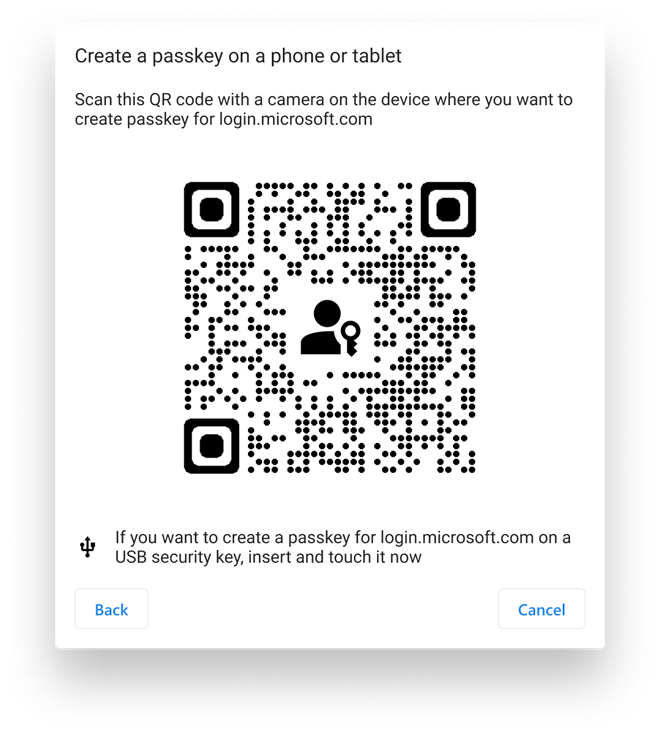
If you're using Chrome or Edge, the browser might prioritize registration of a passkey that's stored on a mobile device over a passkey that's stored on a security key.
-
Beginning with Windows 11 version 23H2, you can sign in with your work or school account and click Next. Below More choices, choose Security key and click Next.
-
On earlier versions of Windows, the browser may show the QR pairing screen to register a passkey that's stored on another mobile device. To register a passkey that's stored on a security key instead, insert your security key and touch it to continue.
-
-
Type your unique security key PIN into the Windows security box, and then select OK. You'll return to the Setting up your new sign-in method box.
-
Select Next.
-
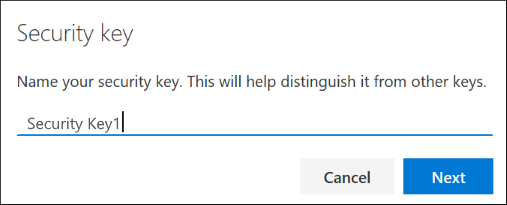
Return to the Security info page, type a name you'll recognize later for your new security key, and then select Next.
-
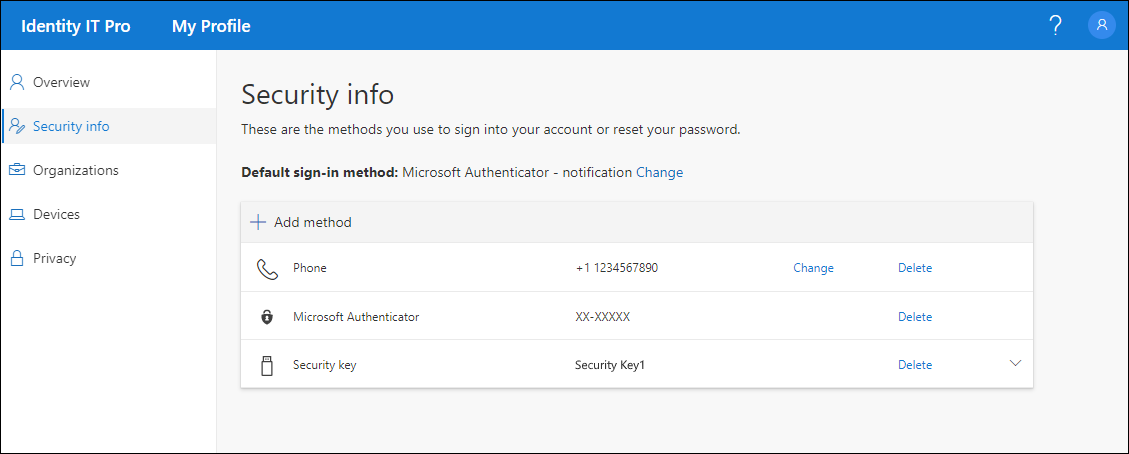
Select Done to close the Security key page. The Security info page is updated with your security key information.
Comments
0 comments
Please sign in to leave a comment.